
Xiaomi MIUI Optimization Disable Guide – Install YouTube Vanced Successfully
MIUI is a Xiaomi MIUI Optimization custom made in-house skin for the Android operating system and 100% of their phones come with this custom ROM. There are tons of optimizations have been done in the aspects of device performance, battery consumption and more. By default, MIUI optimization options have been enabled in the developer options, and you can turn it off whenever you want. But you can see some minor changes in the performance side as well as power consumption.
With MIUI 15 optimization enabled, we cannot do some things like installing third-party apps. Generally, the system returns an error message (Installation failed) in such cases when we try to install APK files especially. So, we have to disable it to install YouTube Vanced app. Also, you can turn it on once our work gets done.
How to Install YouTube Vanced on Xiaomi MIUI Devices?
This is an easy process and all you need is a little patience to set up YouTube Vanced on your Xiaomi phone.
Step 1. Get the Vanced Manager Application from the official website.
Step 2. Now, Click on the APK file and Enable the unknown source option.
Step 3. Set up Vanced Manager APK on your Mi smartphone.
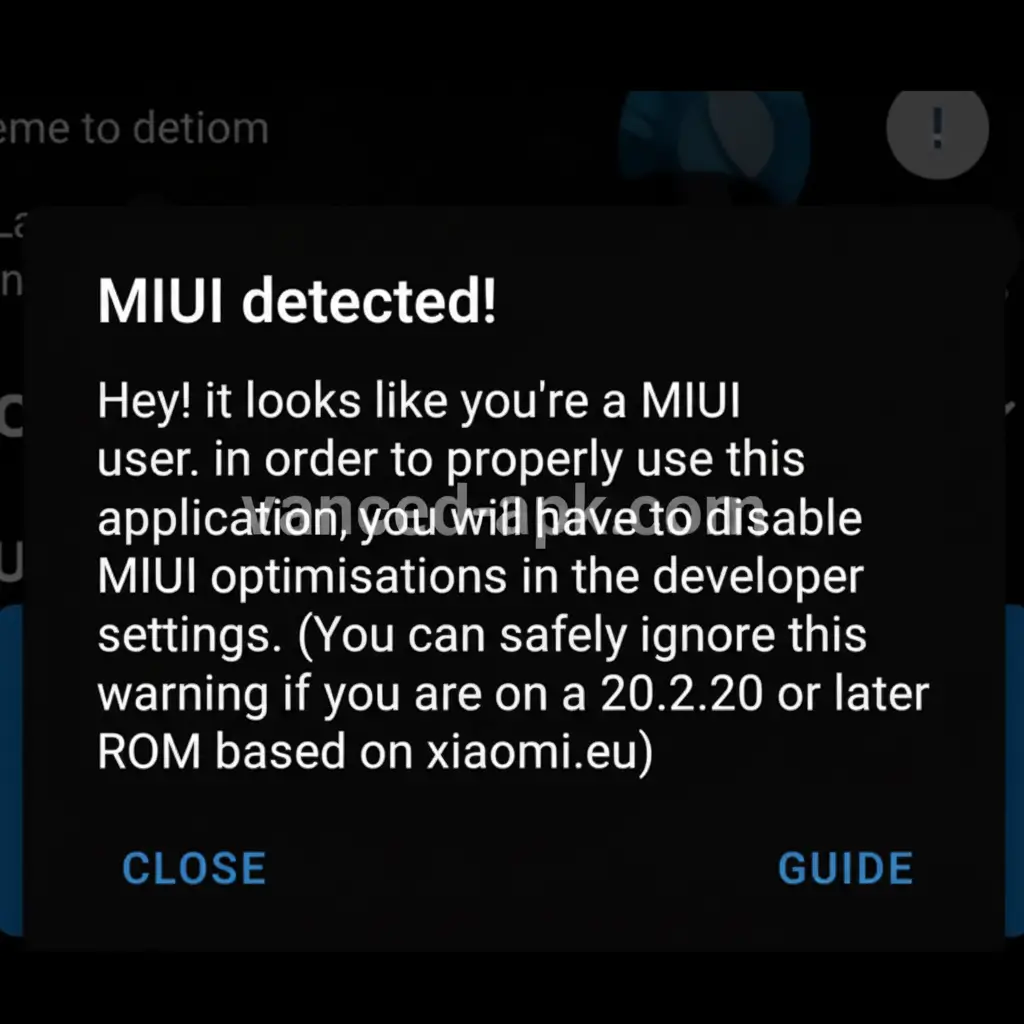
Step 4. Launch it and you will notice a popup displaying MIUI user detected!
Step 5. Now, navigate back and access device settings.
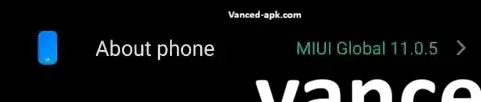
Step 6. Click on About phone followed by All Specs.
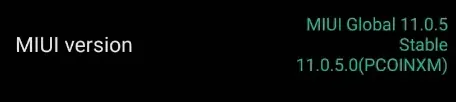
Step 7. Keep tapping on MIUI version until you see the developer message. This indicates that developer options are now unlocked.
Step 8. Return to the main settings menu and head to additional settings.
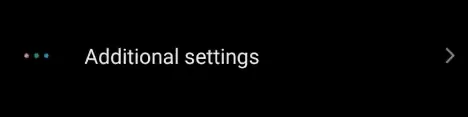
Step 9. You will now find developer options visible – tap on it.
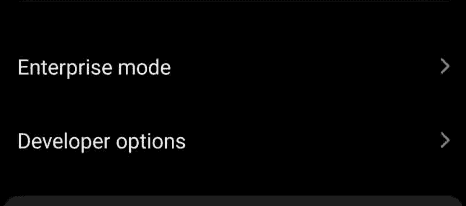
Step 10. Scroll to the very bottom where you will locate MIUI optimizations toggle.
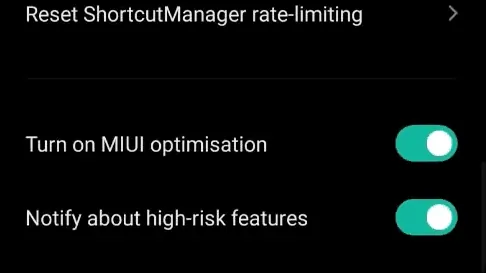
Step 11. Turn it off and confirm the warning message.
Step 12. Launch Vanced Manager application.
Step 13. Set up YouTube Vanced along with Micro G.
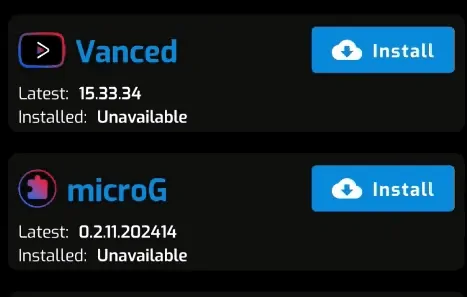
After successfully completing the installation of both applications, head back to developer settings and re-enable the MIUI optimization feature.
Frequently Asked Questions
Conclusion
In conclusion, disabling MIUI Optimization on Xiaomi MIUI devices is a crucial step to successfully install YouTube Vanced using Vanced Manager and MicroG. Due to the security and system-level restrictions built into MIUI (Xiaomi’s custom Android ROM), third-party APK installations often fail with errors like “App not installed”. Temporarily turning off MIUI Optimization removes these limitations and allows YouTube Vanced to install without issues.
After completing the installation, it is highly recommended to re-enable MIUI Optimization to restore optimal Android system performance, battery efficiency, and overall device stability. By following this step-by-step guide on your Xiaomi smartphone, you can safely install YouTube Vanced and enjoy premium-like features such as ad-free video streaming, background playback, and advanced controls—all without compromising your phone’s performance or security.